Instructions to use LordNeel/Hy3-GGUF with libraries, inference providers, notebooks, and local apps. Follow these links to get started.
- Notebooks
- Google Colab
- Kaggle
- Local Apps Settings
- llama.cpp
How to use LordNeel/Hy3-GGUF with llama.cpp:
Install (macOS, Linux)
curl -LsSf https://llama.app/install.sh | sh # Start a local OpenAI-compatible server with a web UI: llama serve -hf LordNeel/Hy3-GGUF:Q4_K_M # Run inference directly in the terminal: llama cli -hf LordNeel/Hy3-GGUF:Q4_K_M
Install from WinGet (Windows)
winget install llama.cpp # Start a local OpenAI-compatible server with a web UI: llama serve -hf LordNeel/Hy3-GGUF:Q4_K_M # Run inference directly in the terminal: llama cli -hf LordNeel/Hy3-GGUF:Q4_K_M
Use pre-built binary
# Download pre-built binary from: # https://github.com/ggerganov/llama.cpp/releases # Start a local OpenAI-compatible server with a web UI: ./llama-server -hf LordNeel/Hy3-GGUF:Q4_K_M # Run inference directly in the terminal: ./llama-cli -hf LordNeel/Hy3-GGUF:Q4_K_M
Build from source code
git clone https://github.com/ggerganov/llama.cpp.git cd llama.cpp cmake -B build cmake --build build -j --target llama-server llama-cli # Start a local OpenAI-compatible server with a web UI: ./build/bin/llama-server -hf LordNeel/Hy3-GGUF:Q4_K_M # Run inference directly in the terminal: ./build/bin/llama-cli -hf LordNeel/Hy3-GGUF:Q4_K_M
Use Docker
docker model run hf.co/LordNeel/Hy3-GGUF:Q4_K_M
- LM Studio
- Jan
- vLLM
How to use LordNeel/Hy3-GGUF with vLLM:
Install from pip and serve model
# Install vLLM from pip: pip install vllm # Start the vLLM server: vllm serve "LordNeel/Hy3-GGUF" # Call the server using curl (OpenAI-compatible API): curl -X POST "http://localhost:8000/v1/chat/completions" \ -H "Content-Type: application/json" \ --data '{ "model": "LordNeel/Hy3-GGUF", "messages": [ { "role": "user", "content": "What is the capital of France?" } ] }'Use Docker
docker model run hf.co/LordNeel/Hy3-GGUF:Q4_K_M
- Ollama
How to use LordNeel/Hy3-GGUF with Ollama:
ollama run hf.co/LordNeel/Hy3-GGUF:Q4_K_M
- Unsloth Desktop
- Pi
How to use LordNeel/Hy3-GGUF with Pi:
Start the llama.cpp server
# Install llama.cpp: brew install llama.cpp # Start a local OpenAI-compatible server: llama serve -hf LordNeel/Hy3-GGUF:Q4_K_M
Configure the model in Pi
# Install Pi: npm install -g @earendil-works/pi-coding-agent # Add to ~/.pi/agent/models.json: { "providers": { "llama-cpp": { "baseUrl": "http://localhost:8080/v1", "api": "openai-completions", "apiKey": "none", "models": [ { "id": "LordNeel/Hy3-GGUF:Q4_K_M" } ] } } }Run Pi
# Start Pi in your project directory: pi
- Docker Model Runner
How to use LordNeel/Hy3-GGUF with Docker Model Runner:
docker model run hf.co/LordNeel/Hy3-GGUF:Q4_K_M
- Lemonade
How to use LordNeel/Hy3-GGUF with Lemonade:
Pull the model
# Download Lemonade from https://lemonade-server.ai/ lemonade pull LordNeel/Hy3-GGUF:Q4_K_M
Run and chat with the model
lemonade run user.Hy3-GGUF-Q4_K_M
List all available models
lemonade list
- Hermes Agent
How to use LordNeel/Hy3-GGUF with Hermes Agent:
Start the llama.cpp server
# Install llama.cpp: brew install llama.cpp # Start a local OpenAI-compatible server: llama serve -hf LordNeel/Hy3-GGUF:Q4_K_M
Configure Hermes
# Install Hermes: curl -fsSL https://hermes-agent.nousresearch.com/install.sh | bash hermes setup # Point Hermes at the local server: hermes config set model.provider custom hermes config set model.base_url http://127.0.0.1:8080/v1 hermes config set model.default LordNeel/Hy3-GGUF:Q4_K_M
Run Hermes
hermes
- Atomic Chat
- OpenClaw
How to use LordNeel/Hy3-GGUF with OpenClaw:
Start the llama.cpp server
# Install llama.cpp: brew install llama.cpp # Start a local OpenAI-compatible server: llama serve -hf LordNeel/Hy3-GGUF:Q4_K_M
Configure OpenClaw
# Install OpenClaw: npm install -g openclaw@latest # Register the local server and set it as the default model: openclaw onboard --non-interactive --mode local \ --auth-choice custom-api-key \ --custom-base-url http://127.0.0.1:8080/v1 \ --custom-model-id "LordNeel/Hy3-GGUF:Q4_K_M" \ --custom-provider-id llama-cpp \ --custom-compatibility openai \ --custom-text-input \ --accept-risk \ --skip-health
Run OpenClaw
openclaw agent --local --agent main --message "Hello from Hugging Face"
|
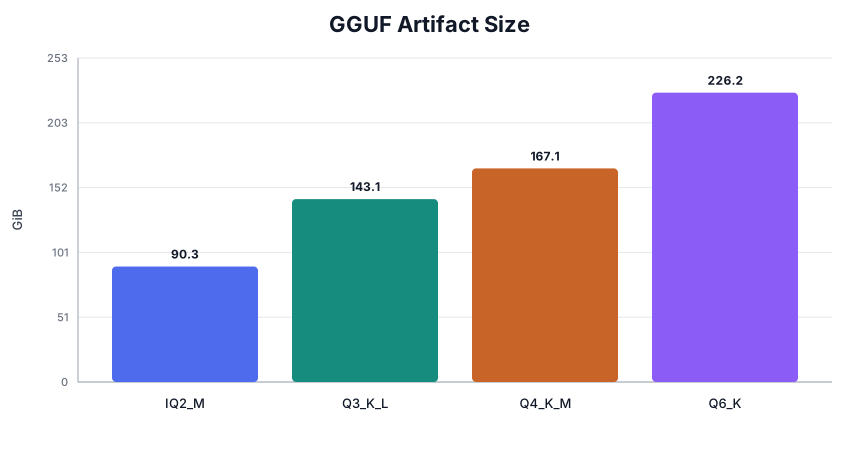
Download assets/model_size.svg from LordNeel/Hy3-GGUF: direct link, hf CLI and curl.
- Browser
- Download file 3.18 kB
-
https://huggingface.co/LordNeel/Hy3-GGUF/resolve/main/assets/model_size.svg
- Command line
-
hf download hf://LordNeel/Hy3-GGUF/assets/model_size.svg
-
curl -L -o model_size.svg https://huggingface.co/LordNeel/Hy3-GGUF/resolve/main/assets/model_size.svg
3.18 kB
| <svg xmlns="http://www.w3.org/2000/svg" viewBox="0 0 860 460" role="img" aria-label="GGUF Artifact Size"> | |
| <rect width="100%" height="100%" fill="#ffffff"/> | |
| <text x="430.0" y="32" text-anchor="middle" font-family="Inter,Arial,sans-serif" font-size="22" font-weight="700" fill="#111827">GGUF Artifact Size</text> | |
| <text x="22" y="220.0" transform="rotate(-90 22 220.0)" text-anchor="middle" font-family="Inter,Arial,sans-serif" font-size="13" fill="#374151">GiB</text> | |
| <line x1="78" y1="382.0" x2="832" y2="382.0" stroke="#e5e7eb" stroke-width="1"/> | |
| <text x="68" y="386.0" text-anchor="end" font-family="Inter,Arial,sans-serif" font-size="11" fill="#6b7280">0</text> | |
| <line x1="78" y1="317.2" x2="832" y2="317.2" stroke="#e5e7eb" stroke-width="1"/> | |
| <text x="68" y="321.2" text-anchor="end" font-family="Inter,Arial,sans-serif" font-size="11" fill="#6b7280">51</text> | |
| <line x1="78" y1="252.4" x2="832" y2="252.4" stroke="#e5e7eb" stroke-width="1"/> | |
| <text x="68" y="256.4" text-anchor="end" font-family="Inter,Arial,sans-serif" font-size="11" fill="#6b7280">101</text> | |
| <line x1="78" y1="187.6" x2="832" y2="187.6" stroke="#e5e7eb" stroke-width="1"/> | |
| <text x="68" y="191.6" text-anchor="end" font-family="Inter,Arial,sans-serif" font-size="11" fill="#6b7280">152</text> | |
| <line x1="78" y1="122.8" x2="832" y2="122.8" stroke="#e5e7eb" stroke-width="1"/> | |
| <text x="68" y="126.8" text-anchor="end" font-family="Inter,Arial,sans-serif" font-size="11" fill="#6b7280">203</text> | |
| <line x1="78" y1="58.0" x2="832" y2="58.0" stroke="#e5e7eb" stroke-width="1"/> | |
| <text x="68" y="62.0" text-anchor="end" font-family="Inter,Arial,sans-serif" font-size="11" fill="#6b7280">253</text> | |
| <line x1="78" y1="58" x2="78" y2="382" stroke="#9ca3af"/> | |
| <line x1="78" y1="382" x2="832" y2="382" stroke="#9ca3af"/> | |
| <rect x="112.0" y="266.5" width="146.0" height="115.5" rx="4" fill="#4f6bed"/> | |
| <text x="185.0" y="258.5" text-anchor="middle" font-family="Inter,Arial,sans-serif" font-size="12" font-weight="600" fill="#111827">90.3</text> | |
| <text x="185.0" y="408" text-anchor="middle" font-family="Inter,Arial,sans-serif" font-size="13" fill="#111827">IQ2_M</text> | |
| <rect x="292.0" y="199.1" width="146.0" height="182.9" rx="4" fill="#168c7e"/> | |
| <text x="365.0" y="191.1" text-anchor="middle" font-family="Inter,Arial,sans-serif" font-size="12" font-weight="600" fill="#111827">143.1</text> | |
| <text x="365.0" y="408" text-anchor="middle" font-family="Inter,Arial,sans-serif" font-size="13" fill="#111827">Q3_K_L</text> | |
| <rect x="472.0" y="168.4" width="146.0" height="213.6" rx="4" fill="#c86428"/> | |
| <text x="545.0" y="160.4" text-anchor="middle" font-family="Inter,Arial,sans-serif" font-size="12" font-weight="600" fill="#111827">167.1</text> | |
| <text x="545.0" y="408" text-anchor="middle" font-family="Inter,Arial,sans-serif" font-size="13" fill="#111827">Q4_K_M</text> | |
| <rect x="652.0" y="92.7" width="146.0" height="289.3" rx="4" fill="#8b5cf6"/> | |
| <text x="725.0" y="84.7" text-anchor="middle" font-family="Inter,Arial,sans-serif" font-size="12" font-weight="600" fill="#111827">226.2</text> | |
| <text x="725.0" y="408" text-anchor="middle" font-family="Inter,Arial,sans-serif" font-size="13" fill="#111827">Q6_K</text> | |
| </svg> | |